
provider
Gmail SMTP Settings: Ports, App Passwords and Sending Limits
Gmail’s SMTP server is free, reliable, and the fastest way to get an application sending real mail. The settings themselves take thirty seconds. What catches people out is the authentication, which changed in 2022, and the sending limits, which are lower than almost everyone expects.
The settings
| Setting | Value |
|---|---|
| SMTP server | smtp.gmail.com |
| Port | 587 (STARTTLS) or 465 (SSL/TLS) |
| Encryption | Required — STARTTLS on 587, implicit TLS on 465 |
| Username | Your full address, e.g. you@gmail.com |
| Password | A 16-character app password — not your account password |
| Authentication | Required |
For Google Workspace accounts on a custom domain, the server is the same — smtp.gmail.com — and the username is your full work address.
587 or 465?
Use 587. It is the standard submission port and what most libraries and applications expect by default. Port 465 is equally valid and equally encrypted; use it only if your application asks for implicit TLS specifically.
Do not use port 25. It is for server-to-server transfer, not authenticated submission, and most hosting providers and home ISPs block outbound 25 entirely to limit spam.
App passwords: the part that breaks
Since May 2022 Google no longer accepts your normal account password over SMTP. If you are getting 535-5.7.8 Username and Password not accepted, this is why.
You need an app password:
- Enable 2-Step Verification on the Google account. The app password option does not exist until you do — this is the step people miss.
- Go to your Google Account → Security → App passwords.
- Generate one, name it after whatever is sending (so you can revoke it later without breaking everything else).
- Use the 16-character string as the SMTP password. Spaces in the displayed value are cosmetic; include them or strip them, both work.
A few things worth knowing:
- App passwords bypass 2FA by design. Treat each one as a full credential for that account and revoke any you are not using.
- Google Workspace administrators can disable app passwords tenant-wide. If the option is missing on a work account and 2-Step Verification is on, this is usually why — ask your admin.
- For production applications sending on behalf of users, OAuth 2.0 is the correct approach rather than app passwords.
The errors you will hit
| Error | Cause | Fix |
|---|---|---|
535-5.7.8 Username and Password not accepted | Using the account password instead of an app password | Generate an app password |
534-5.7.9 Application-specific password required | Same cause, stated plainly | Generate an app password |
550-5.7.26 ... not accepted ... authentication | The receiving server rejected you for missing SPF/DKIM | Configure SPF, DKIM and DMARC on your sending domain |
421 4.7.0 Try again later | Rate-limited — too much volume, too fast | Slow down and ramp gradually |
550 5.4.5 Daily user sending limit exceeded | You hit the daily cap | Wait ~24 hours; see limits below |
| Connection timeout on port 25 | Your host blocks port 25 | Use 587 |
Codes beginning 5 are permanent, codes beginning 4 are temporary — the same rule that governs bounce messages.
Sending limits
This is the constraint that actually matters, and it is measured in recipients, not messages. One email to 50 people spends 50 of your allowance.
| Account type | Daily limit via SMTP |
|---|---|
| Free Gmail (@gmail.com) | ~500 recipients |
| Google Workspace | 2,000 recipients |
| Workspace, first days of a new account | Lower, unpublished, ramps up |
Hit the cap and Google locks SMTP sending on that account for roughly 24 hours. There is no override and no way to buy more — the limit is structural, which is why Gmail SMTP is not a bulk-sending platform no matter how it is configured.
New Workspace accounts are quietly throttled below the published limit for the first stretch of their life, which is why a brand-new mailbox that “should” send 2,000 starts deferring at a few hundred. Full detail on the limits here.
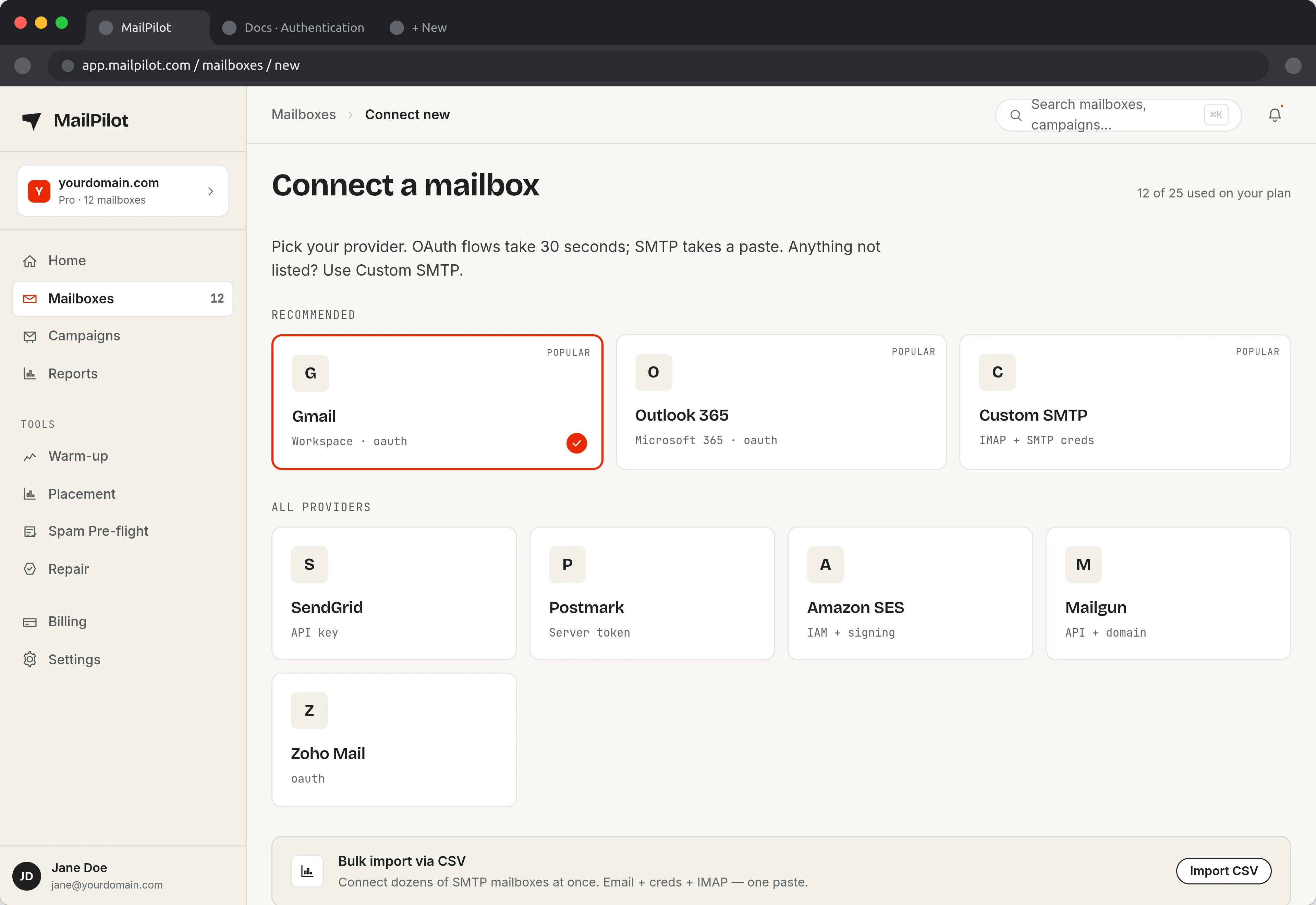
OAuth avoids app passwords entirely for Google Workspace and Microsoft 365; SMTP host-and-port covers everything else. (Full product tour)
Working SMTP is not deliverability
A successful SMTP connection means Gmail accepted your message for delivery. It says nothing about whether it reaches an inbox.
Two things decide that, and neither is an SMTP setting:
Authentication. If you send from a custom domain, that domain needs SPF, DKIM and DMARC configured correctly, or receiving servers will reject or spam-file your mail regardless of how cleanly it left Gmail. You can check all three here in a few seconds.
Reputation. A new domain or mailbox has no sending history, and mailbox providers treat unknown senders with suspicion — throttling first, filtering second. Ramping volume gradually builds the history that prevents this, which is what email warmup automates. Going from zero to a few hundred cold emails on day one is the most reliable way to get a new Gmail account limited.
If mail is sending successfully but not arriving, the problem is downstream of SMTP: start with why emails go to spam.
Quick reference
Host:       smtp.gmail.com
Port:       587
Security:   STARTTLS
Username:   you@gmail.com
Password:   <16-character app password>
If that fails, the cause is almost always the password. Generate an app password before debugging anything else.
Land in the inbox — automatically
MailPilot warms up your mailboxes across a network of real inboxes, so your emails stop hitting spam — and alerts you in Slack & Discord the moment placement drops. Free plan for one mailbox, or a 7-day trial of the paid plans with unlimited mailboxes. No credit card.
Start free with MailPilotGmail SMTP Settings — FAQ
What are the Gmail SMTP settings?
Server: smtp.gmail.com. Port: 587 with STARTTLS, or 465 with SSL/TLS. Username: your full Gmail address including @gmail.com. Password: a 16-character app password generated in your Google Account, not your normal login password.
Which Gmail SMTP port should I use, 587 or 465?
Use 587 with STARTTLS unless your application specifically requires implicit TLS, in which case use 465. Both are encrypted and both work. Port 25 is blocked by most hosting providers and should not be used for authenticated submission.
Why is Gmail rejecting my password for SMTP?
Because Google disabled password authentication for SMTP in May 2022. You need an app password: enable 2-Step Verification on the account, then generate a 16-character app password in your Google Account security settings and use that in place of your password. Without 2-Step Verification enabled, the app password option does not appear at all.
What is the Gmail SMTP sending limit?
A free Gmail account allows roughly 500 recipients per day through SMTP. Google Workspace allows 2,000 per day for normal sending. Exceeding it locks SMTP sending on the account for around 24 hours. These are recipient counts, not message counts — one email to 50 people consumes 50.
Can I use Gmail SMTP for cold email or bulk sending?
It works technically, but Gmail's limits are low and Google actively throttles accounts that ramp volume suddenly. Any new Gmail or Workspace mailbox used for outreach needs warming up gradually first, and you still need SPF, DKIM and DMARC configured on the sending domain or Gmail will reject or spam-file your mail.